Information Technology Services
Information Technology Services at Kankakee Community College creates and maintains a technology environment that promotes and expands access to technology for academic, instructional, and administrative activities for the entire college community. Services include:
- Lab maintenance and support
- Smart room maintenance and support
- Email support
- Account creation and network access
- Password resets
- Wireless access
- Printer maintenance and support
The Helpdesk is your single point of contact for all network, computer, password or login issues.
Hours
Monday - Thursday, 7:30 a.m. - 8 p.m.
*See footnote on Friday hoursFridays, 7:30 a.m. - 5 p.m.
Saturday - Sunday, closed
*KCC is closed most Fridays in May, June and July. ↩Jump back to ITS hours
Contact
Room: L364
815-802-8900
helpdesk@kcc.edu
Before You Call
- Reboot your machine and try again
- Write down the exact wording of any error messages or, if possible, print a screenshot of the message.
- Have your ID number available when you call
When You Call
Please provide the following information when placing a Helpdesk call:
- Your full name
- The room number and location of the problem
- A phone number or alternate means of contact
- The type of equipment with the problem (printer, scanner, monitor, etc.)
- A clear, detailed description of the problem. Include the exact wording of any error messages or a screenshot of the error
- The version of the software program in which you are experiencing difficulty. Usually the version is available in the application’s Help or About section
Depending on the type of problem, you may be asked some additional questions. Any detailed information that you may provide will expedite problem resolution. We offer full support of all our standard installed Windows software. Please note: The ITS Helpdesk only supports college-owned equipment in a KCC facility.
Password Self-Service
Students can reset or change their current password using KCC’s Password Self-Service.
- Go to My KCC - https://my.kcc.edu
- In the “Bookmarks and Links” section, choose “Password Self-Service.”
- Sign in with your KCC user ID and password.
- New users will be prompted to enroll in Password Self-Service.
- Provide answers for up to five security questions.
- You have the option to set up an SMS Verification Code or Google Authenticator App.
Your KCC username
Use your KCC username and password to access computers on campus and online resources.
Your username is created within one business day after your application is submitted to KCC.
- Find it on your welcome email from admissions@kcc.edu
- Find it on your printed registration statement
KCC Student Email
Email for KCC students is hosted through Google.
- The address format is username@student.kcc.edu
- Access Student Email through My KCC - https://my.kcc.edu
Accessing Online Courses
Online courses are hosted through Canvas.
- Access online courses through My KCC - https://my.kcc.edu
- Courses are accessible through Canvas by 8 a.m. the first day of the course.
Register Online
Notes: A Master Academic Plan is required for degree seeking students. To register online using Student Self-Service, you must meet these requirements:
- Complete New Student Orientation.
- Enroll in, or have completed, one credit hour or more at KCC in the past three years (not including 0900-0999 courses).
- Have a KCC GPA of 2.0 or higher (if the current semester/term is your first at KCC – this requirement is waived).
For step-by-step information on how to register online, go to www.kcc.edu/register
When you are ready to register, go to My KCC - https://my.kcc.edu
After registering, check your KCC email account for registration confirmation.
Pay for Classes
- Go to My KCC - https://my.kcc.edu
- In the “College Applications” section, choose “Student Self-Service.”
- Click on “Student Finance.”
- To pay in full, click on “View Account” and “Make Payments.”
- To set up a payment plan, click “Nelnet Payment Plan.”
Passwords
Reset a forgotten password - Visit password.kcc.edu to reset your password.
Enroll in Self-Service Password Reset
- Go to My KCC - https://my.kcc.edu
- In “Bookmarks and Links” section, choose “Self Service Password Reset.”
- Sign in with your KCC email address (username@student.kcc.edu) and password.
- Verify or update the authentication methods listed.
Opt-In for Emergency and Information Text Alerts
- Go to My KCC - https://my.kcc.edu
- Under College Applications, choose Self-Service.
- Under the main menu, choose User Options.
- Click User Profile.
- Click “ + Add New Phone.”
- Add the phone number information. For Type, choose “Receive KCC Text Alerts.”
Important note: A separate entry for text alerts is required. Do not remove your primary/alternate/business number when you add a text number. The same number can be used for more than one phone number type.
In person: Visit the registration counter in Student Affairs and complete a “Change of Personal Information” form.
Note: Message and data rates apply.
Open Labs
Open labs are not scheduled for classes and are available during regular college hours.
Summer hours
KCC is closed on most Fridays and Saturdays, May through July.
| Building | Room | Mon-Thurs | Fri | Sat | Availability |
|---|---|---|---|---|---|
| WDC | D300 Hallway | 8 a.m. - 10 p.m. | Open | ||
| Library | L161 | 7:45 a.m. - 8 p.m. | Open | ||
| L162 | 7:45 a.m. - 8 p.m. | Open | |||
| L163 | 7:45 a.m. - 8 p.m. | Open | |||
| L291 | 7:45 a.m. - 8 p.m. | Open | |||
| Arts & Sciences | R300 Hallway | 8 a.m. - 10 p.m. | Open |
Fall and spring hours
| Building | Room | Mon-Thurs | Fri | Sat | Availability |
|---|---|---|---|---|---|
| WDC | D300 Hallway | 8 a.m. - 10 p.m. | Open | ||
| Library | L161 | 7:45 a.m. - 8 p.m. | Open | ||
| L162 | 7:45 a.m. - 8 p.m. | Open | |||
| L163 | 7:45 a.m. - 8 p.m. | Open | |||
| L291 | 7:45 a.m. - 8 p.m. | Open | |||
| Arts & Sciences | R300 Hallway | 8 a.m. - 10 p.m. | Open |
Google Apps
Google Apps is a suite of communication and collaboration applications. This “office suite” of tools - Docs, Sheets, Slides, and more - offers the ability to work from any device as well as share and collaborate.
Because all Google Apps save to the cloud, teachers and students gain the flexibility to work from any computer or device. Students and teachers can seamlessly save work and collaborate both synchronously and asynchronously.
Gmail
Gmail is provided by Google. Your Gmail password is the same as the one you used for the KCC network, Canvas, and KCConnect.
Email addresses for students are in the format of username@student.kcc.edu. (e.g. jtcavalier@student.kcc.edu)
Accessing Your Account for the First Time
- Go to https://mail.google.com/a/student.kcc.edu.
- Enter your username@student.kcc.edu and password.
- Usernames are not case-sensitive. If you don’t know your KCC username, look it up on What’s My User ID?
- Passwords are case-sensitive. The default password for your account is the last seven digits of your Social Security number.
- The password for your KCC Gmail account is the same as the one used for other KCC computing resources, i.e. Canvas, KCConnect, and the college network.
- Choose “Sign in.”
- Perform the CAPTCHA by re-typing the letters in the image
- Select “I accept. Continue to my account.”
Your account is now active and you should see your inbox on your screen.
Using Your Personal Email Account
You can create a Gmail rule to forward your Google account (jrsmith@student.kcc.edu) to your personal email.
Review additional Gmail information on Google’s website regarding how to use your Gmail @ KCC account.
As part of KCC’s Microsoft Software License Agreement, students have access to Office 365 for Education. This program allows eligible students to obtain a copy for home use.
Eligibility
If you are eligible, you can use the plan until you graduate or are no longer enrolled at KCC. Student eligibility may be re-verified at any time. At expiration, the Office applications enter a reduced-functionality mode, which means documents can be viewed but it isn’t possible to edit or create new documents. In addition, online services associated with the school email address, for example Office Online and OneDrive, will no longer work.
Installation Instructions
To access the Microsoft Office 365 software, please follow the steps below:
- Go to https://portal.office.com/. By accessing this web site and providing your email address, you are consenting that you understand and agree to the terms of Microsoft Office in Education License Agreement.

- Enter your college email address and password. Staff will use (username@kcc.edu).
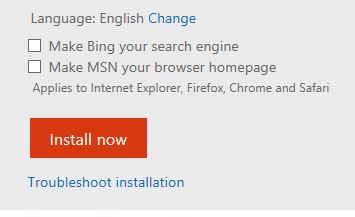
- There are two check boxes you should uncheck before installing:
- Uncheck “Make Bing your search engine.”
- Uncheck “Make MSN your browser homepage.”
- Select “Install now.”
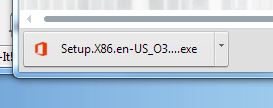
- A popup will ask you to Run/Save the Office Setup File. Go ahead and select “Run.”
- For Google Chrome users, it will automatically download to your download’s folder. In this case select the down arrow and select “Open.”
- Select “Yes” to allow Microsoft to run Setup on your computer. A progress box will show up followed by a notification in your System Tray.
- Finally, a welcome screen will pop-up when installed. Go ahead and select “Next.”



The Information Technology Services department provides the technology items faculty and staff need to serve our students.
In addition to individual computer workstations and labs, the ITS department maintains and supports the college’s phone system and presentation systems in classrooms and conference rooms.
The Information Technology Services Department provides basic training to staff and faculty in computer access, phone/voice mail, and email. You can schedule training by appointment through the ITS Helpdesk by calling 815-802-8900, stopping by Room L364, or emailing helpdesk@kcc.edu.
Smart Classrooms
There are 38 locations available for course and seminar presentations, including smart classrooms, the Workforce Development Center Conference Hall and the auditorium. Each of the “smart rooms” are complete with integrated audio-visual equipment, including PC workstations, document cameras, VCR and DVD players, microphones and projectors.
Training for this equipment is generally available during fall and spring faculty in-service. If you are interested in using one of these rooms, go to KCC’s room and event scheduling system for scheduling information. The equipment in most rooms is controlled by an intuitive touchpad.
Smart Classroom Locations
| Room D123 | Room L307 | Room M111 | Room R212 |
| Room D124 | Room L313 | Room M112 | Room R305 |
| Room D140 WDC Conference Hall | Room L315 | Room M117 | Room R306 |
| Room D152 Iroquois Room | Room L317 | Room M122 | Room R307 |
| Room D211 | Room L321 | Room M129 | Room V102 |
| Room D212 | Room L344 | Room M130 | Room V205 |
| Room D213 | Room L369 | Room M139 | Room W101 |
| Room D214 | Room L371 | Room R107 | Room W109 |
| Room L110 Auditorium | Room L373 | Room R116 | |
| Room L305 | Room M106 | Room R205 |
MyFiles
Access Campus Network Files Remotely
MyFiles allows staff to access their files on KCC’s campus network through a browser interface from any location. To use this service, login to myfiles.kcc.edu using the same username and password that you use for other online resources such as KCC Connect and Canvas.
Learn more about MyFiles
To learn more about KCC’s remote file access, called “MyFiles,” review the User Guide* or contact the ITS Helpdesk at helpdesk@kcc.edu.
* Please note that all features listed in the user guide have not been implemented.
Office 365 in Education
As part of KCC’s Microsoft Software License Agreement, faculty and full-time staff have access to Office 365 for Education. This program allows employees to obtain a copy for home use.
Eligibility
Full- or part-time teachers and staff at qualifying schools are eligible if they:
- Have a school-specific email address provided by the school (for example, kcc.edu) that can receive external email
- Have Internet access
- At expiration, Office applications enter a reduced-functionality mode. Documents can be viewed but not edited. New documents cannot be created. Online services associated with the school email address, such as Office Online and OneDrive, will no longer work.
Installation Instructions
See the above Installation Instructions to access Microsoft Office 365 software.
The following policies have been adopted to ensure equitable, appropriate and legal use of KCC computing resources. Violation of a computing-related policy could result in disciplinary action, up to and including suspension or termination.
Policies are examined by KCC communication committees and administration before being submitted to the Board of Trustees for approval and are reviewed annually.
Acceptable Use
The computing resources at Kankakee Community College support the educational, instructional, research, and administrative activities of the college and the use of these resources is a privilege that is extended to members of the KCC community. As a user of these services and facilities, you have access to valuable college resources, to sensitive data, and to internal and external networks. Consequently, it is important for you to behave in a responsible, ethical, and legal manner.
In general, acceptable use means respecting the rights of other computer users, the integrity of the physical facilities and all pertinent license and contractual agreements. If an individual is found to be in violation of the Acceptable Use Policy, the college will take disciplinary action, including the restriction and possible loss of network privileges. A serious violation could result in more serious consequences, up to and including suspension or termination from the college. Individuals are also subject to federal, state and local laws governing many interactions that occur on the Internet. These policies and laws are subject to change as state and federal laws develop and change. View full policy. View acceptable use examples
KCC’s email services support the educational and administrative activities of the college and serve as a means of official communication by and between users and KCC. The purpose of this policy is to ensure that this critical service remains available and reliable, and is used for purposes appropriate to the college’s mission.
This policy applies to all members of the KCC community who are entitled to email.
KCC provides electronic mail services to faculty, staff and students, and to other affiliated classes of individuals, including alumni and official visitors. Use of KCC email services must be consistent with KCC’s educational goals and comply with local, state and federal laws and college policies. View full policy.
Q. What is my username?
A. You can find your username on your welcome email from admissions@kcc.edu; and on your printed registration statement.
Q. What if I forgot my KCC password?
A. You can use KCC’s Self-Service Password Reset Tool at password.kcc.edu to reset you KCC password.
Q. How do I manage my KCC password?
A. From within the my.kcc.edu portal, click on “Self-Service Password Reset” under Bookmarks and Links. Here, you can change your existing password and update the authentication methods used to reset your password.
Q. What is my email address?
A. Your student email address is username@student.kcc.edu. Student email is on the Gmail platform.
Q. How do I log in to Gmail?
A. Go to http://mail.student.kcc.edu, enter your username and password (username@student.kcc.edu).
Q: What happens when two students have the same first initial, middle initial and last name?
A. If a duplicate username already exists, a sequence number will be added to the username. For example, if the username jjgarcia exists and Juan Javiar Garcia enrolls, Juan’s username would be jjgarcia#, where # is a one or more digit sequence number.
Q: I don’t like my username. Can I change it to something else?
A. At this time, usernames will only be changed when an individual’s name changes, e.g. name change because of marriage. Contact KCC’s registration department for help with name changes.
Q: What computer resources can I access with my KCC username and password?
A. The KCC network and the my.kcc.edu portal, (Including all services that support Single Sign-On including Student/Staff Email, Google Workspace, Microsoft365, Canvas, etc).
Q: Are there any rules that govern passwords?
A. Eight character minimum; at least one upper case character, one lower case character, a number, and a special character; cannot exceed two consecutive characters; cannot contain the account name or parts of the user’s full name.
Q: I’ve read the FAQ but still can’t log in. What should I do?
A. Please visit or email the ITS Helpdesk or go to password.kcc.edu. Usernames are case sensitive and only use lowercase. Verify that the Caps Lock button is not enabled.
Q: An application I am working on is “hanging.” What should I do?
A: Press Alt, Ctrl and Delete simultaneously, then choose “Task Manager.” Under “Applications,” ensure that the application is running (instead of “not responding”). If it is not responding, highlight it and choose “End Task.” Unsaved data will be lost. You may also try re-starting the machine. If the application is still slow/hanging, contact the ITS HelpDesk.
Print Quota
Each semester, each KCC student is given a $25 quota of free printing. This allows students to print, without charge, 500 black and white pages charged at 5 cents, 250 color pages (restricted to certain courses) charged at 10 cents, or a combination of both.
Students who exceed their per semester print quota will need to come to Information Technology Services (Room L364) to have their quota temporarily increased. Quotas are increased on a case-by-case basis, allowing the student an additional 50 pages of printing. Quota increases are only granted once per semester.
Each quota increase request will be reviewed by Information Technology Services personnel to determine the validity of the request and to ascertain why the overage occurred. Please be sure to have a valid student ID with you at the time of your request.
Viewing Print Quota and Usage
Print quotas can be reviewed on any campus computer by logging in with your username and password. 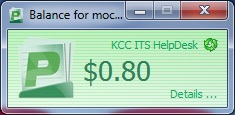
Upon login, an application window (image on right) will appear in the upper right corner of the screen. This windows provides a snapshot of the remaining print quota balance.
For additional information such as print summary, transaction history, and recent print jobs, click on the “Details …” link in the lower right corner of the application window.
Printing Tips
- Only print what is absolutely necessary.
- Use Print Preview as a way to verify what you are actually printing.
- Use the print-friendly version when printing web pages from a browser (if available).
- Verify the number of pages you intend to print.
- Print double-sided whenever possible.
- If printing slides, change to a Handouts format that allows multiple slides to be printed on a single page.
Printing FAQs
Why is KCC charging students for printing?
The college is not charging students for printing. The $25 per semester print credit is provided to students free of charge.
Over the last few years we have continued to see the costs rise associated with student printing. It is our hope that by making students aware of these costs that we can reduce the amount of printing waste that is created each semester.
Why does KCC have a print quota?
The quota is a way to control printing costs and to work within our mission to be sustainable in all aspects of the college’s operations.
Is a 500-page per semester print quota enough?
From our analysis the 500 page per semester print quota is adequate for most students. The quota was derived by looking at actual student print usage at KCC and also reviewing the print quotas established by other colleges and universities.
What if I go over my 500-page quota?
Once you exceed your 500-page quota you will need to come to Information Technology Services (Room L364) to have your quota temporarily increased. Quotas are increased on a case-by-case basis allowing the student an additional 50 pages of printing and are only granted once per semester.
Each quota increase request will be reviewed by department personnel to determine the validity of the request and ascertain why the overage occurred. Please be sure to have a valid student ID with you at the time of your request.
When will my 500-page quota be reset?
Quotas will be reset at the start of each semester.
How can I determine my quota balance?
Upon logging into any of the computers on KCC’s campus, an application will launch that will display the quota balance. Within the application, which is usually found in the upper right hand corner of the screen, you can click on the Details … link to get more information about your balance in addition to information about your print usage.
What happens to the balance of my quota if it is not exhausted by the end of a semester?
Quotas will not roll over. Any balance will just be reset with the start of a new semester.
Can I get a refund on my quota balance?
No. The $25 print credit is provided free of charge to students. The monetary nature of the quota is to make students aware of the cost of printing and should not be construed as a financial obligation provided to or owed to the student.
What are per-page costs associated with printing?
Black and white (monochrome) will cost the student 5 cents per page. Color (restricted to certain courses) will cost the student 10 cents per page.
How is double-sided printing counted?
Double-side printing is considered to be two pages and thus a student would be charged accordingly. For one double-sided black and white page, the student’s account will be charged 10 cents.